
Using Git provider team definitions for your teams
Note: This feature is currently only available for GitHub customers.
Configuring teams in CodeScene can be time consuming, both on initial setup and when team compositions change over time. CodeScene allows you to connect your CodeScene team definitions to the teams defined on your provider.
Note: This is not an automatic sync feature. Setting up and maintaining your teams will still require manual intervention. There are two primary reasons for this:
Git provider teams allow a single user to belong to multiple teams, while in CodeScene each author can only belong to one team.
Git provider teams are lists of user accounts, whereas CodeScene uses the author information in the Git log to identify authors. The mapping between user accounts and authors is not always straightforward.
We will discuss both these points in detail below.
Quick start
The Git provider teams feature is accessed in the Teams tab of the Teams/Developers configuration page relevant to your project.
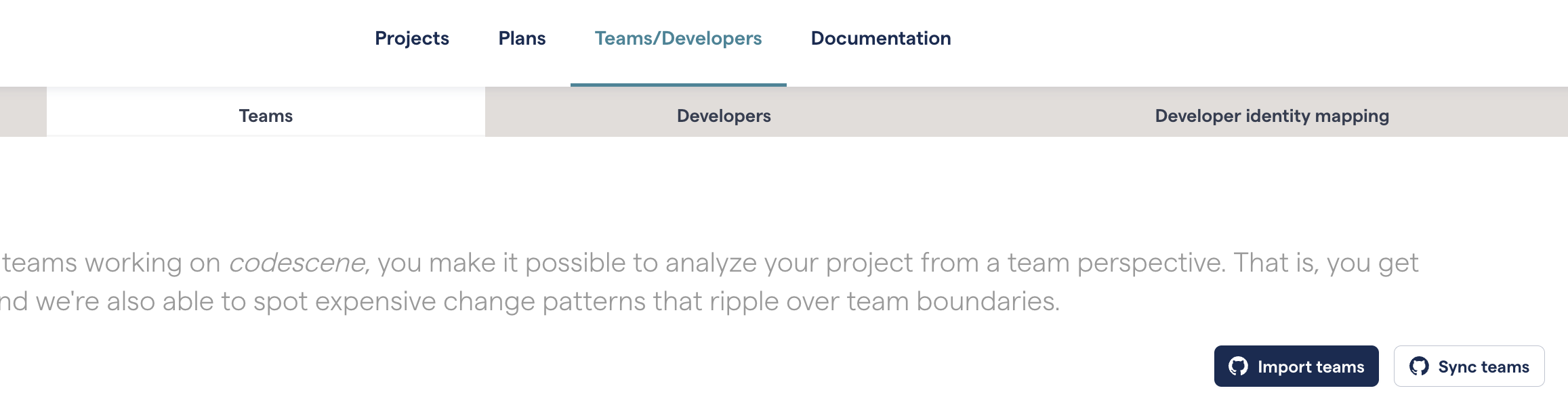
Fig. 197 The entry point for using your provider teams to help configure your teams in CodeScene
Importing new teams
If teams have not been configured, or there are teams that are missing from your configuration, click on the Import teams button.
You will see a list of the teams from your Git provider. You can choose any team to import, as long as it is not already connected to a CodeScene team.
When you’ve selected a team, you’ll see this dialog, showing the team members.
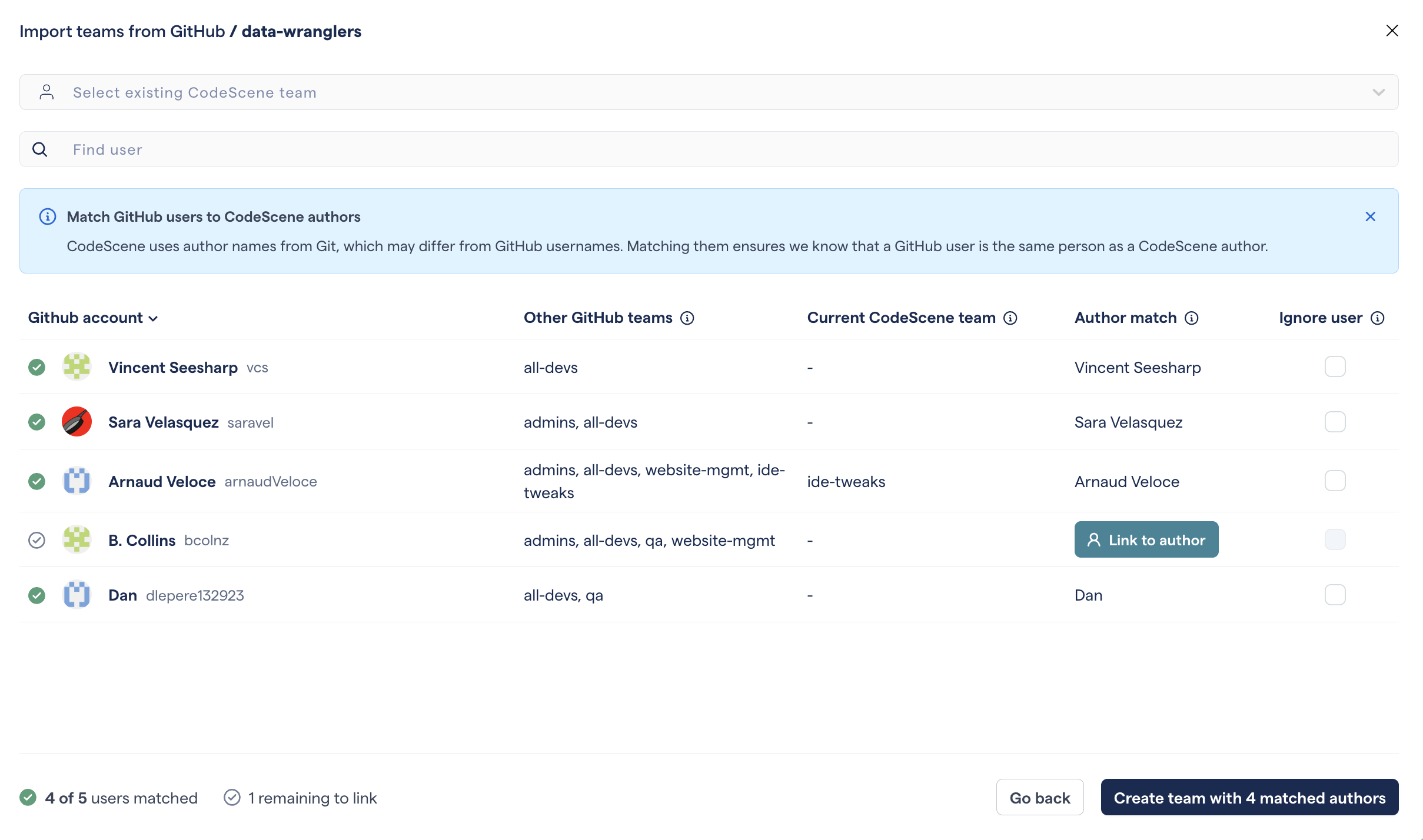
Fig. 198 Importing a team: the team members
If you click immediately on the “Create team with 4 matched authors” button at the bottom, then a new team will be created with the same name as the provider team.
All the members of the provider team that CodeScene was able to match to authors will be added to the new team. If those authors were already assigned to another CodeScene team, they will be removed from that team and added to the team you created.
If you want to leave authors where they are, you can check “Ignore”. You can always move them in a later action.
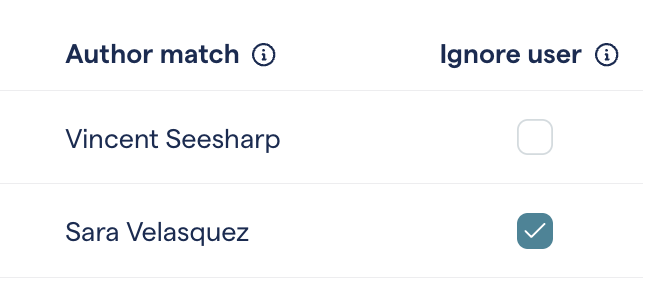
Fig. 199 Ignoring user means that they will not be included in the next action.
When your ready, click on “Create team”. You’ll see a confirmation modal explaining the actions that will be performed.
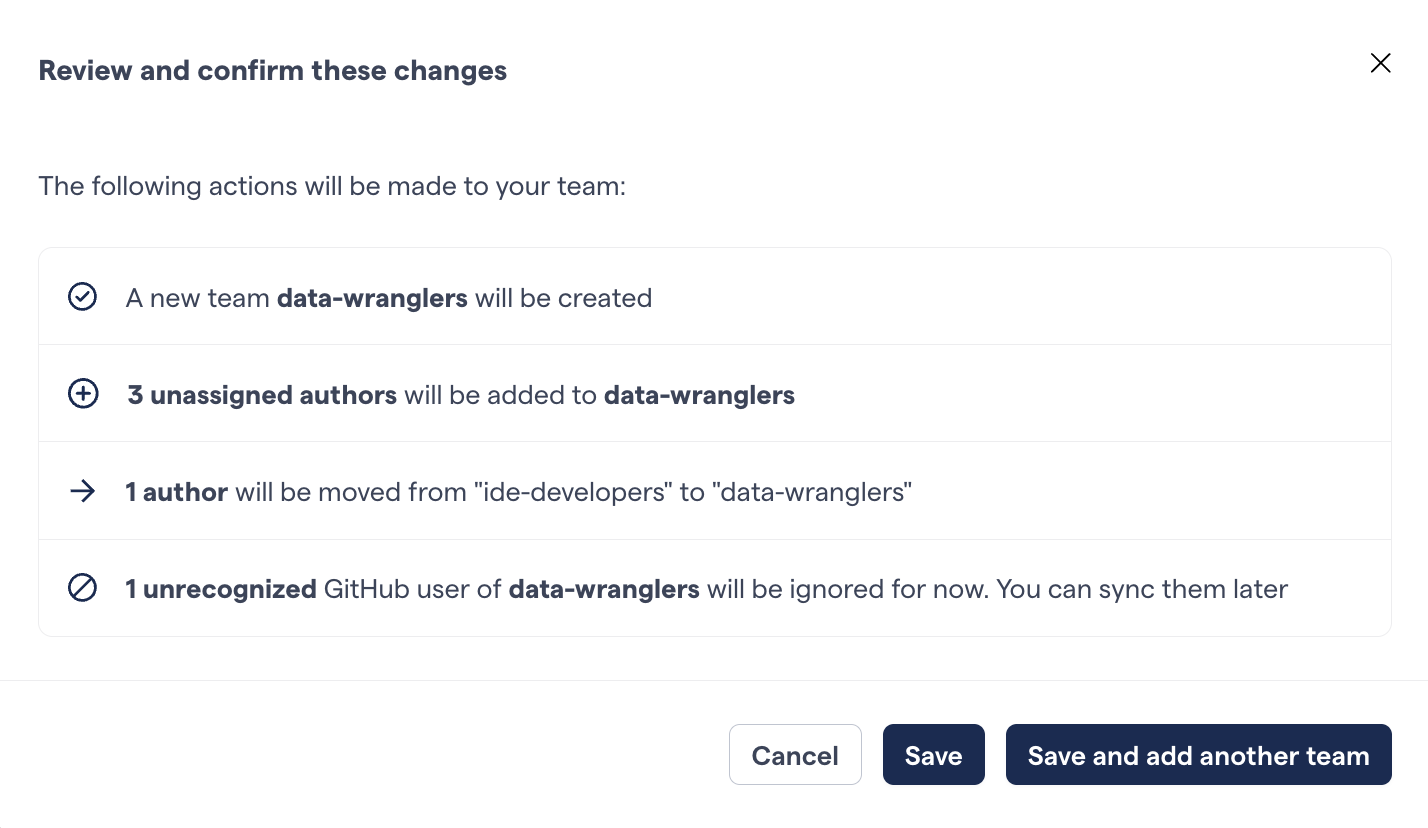
Fig. 200 You can confirm the actions that will be performed.
Once the changes are made, you can still modify the team composition manually in the “Developers” tab.
Connecting an existing team
You may have already configured teams in CodeScene, but want to connect these existing teams to the teams on your Git provider.
The process is very similar to importing a new team. The advantage is that when a CodeScene team is connected to a Git provider team, you will be able to synchronize changes to the Git provider team as described below (see Synchronizing teams).
To connect a team, start with the “Import teams” button as above. The process is the same, except that you choose the CodeScene you want to connect in the dropdown at the top of the view.
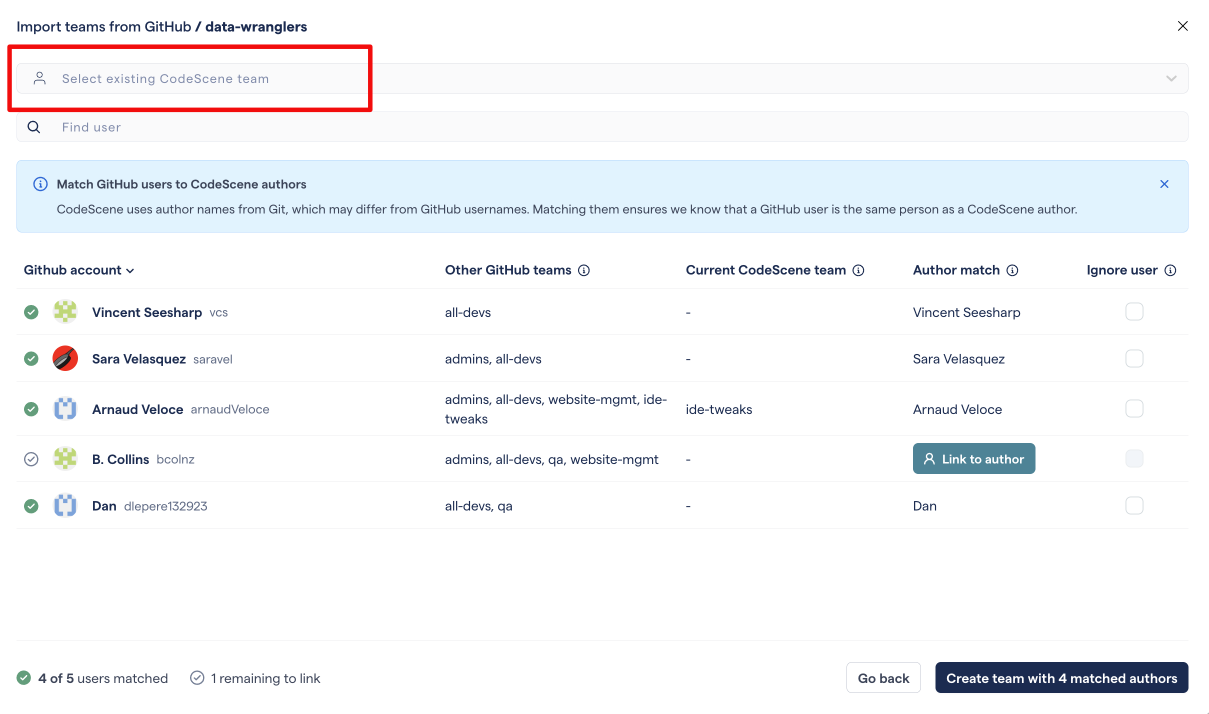
Fig. 201 Pick the existing CodeScene team you want to connect to.
The remaining steps are the same as for importing teams.
Note that when the existing team is connected, it will be renamed to match the Git provider team name.
Synchronizing teams
When one or more CodeScene teams are connected to Git provider teams, either by importing them or connecting them, you can then go back to check for differences.
This process starts by clicking on the “Sync teams” button on the Teams tab.
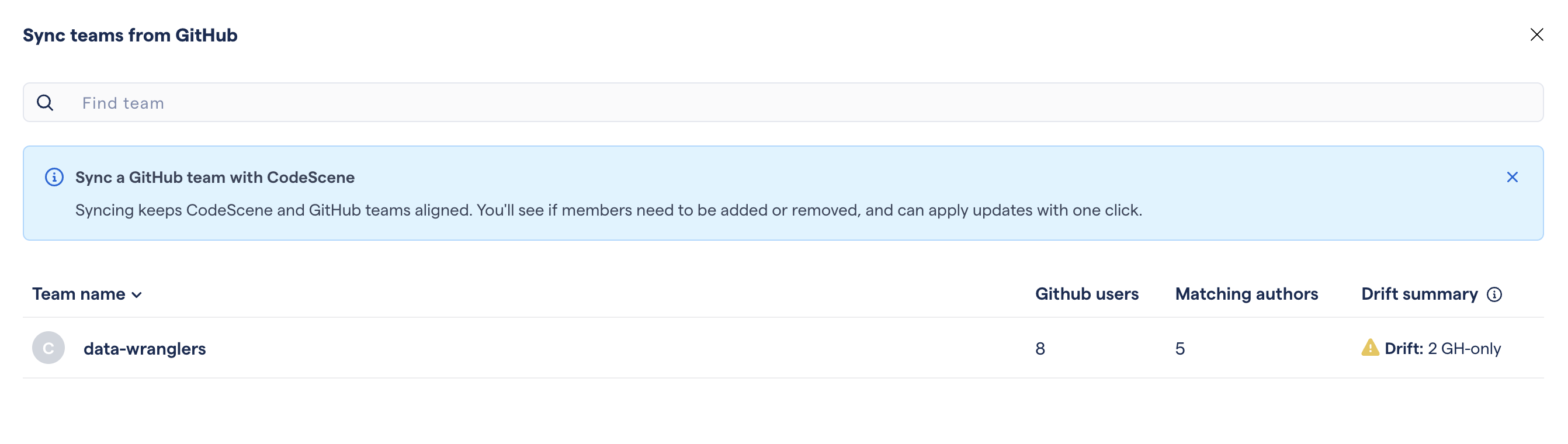
Fig. 202 Only teams that have been connected to CodeScene teams can be synchronized
In this list, only the data-wranglers team has been connected to a CodeScene team. With the “Drift summary” column, we can see that there are two GitHub users that appear to be missing from the CodeScene team.
By clicking on the team, we see a listing of the team members. In the “Status” column, we can see how the Git provider and CodeScene versions of the team differ. Members that are part of both versions of the team will have a status of “Up to date”. Members that are only present on the Git provider side will be marked as “Candidates for addition”. Conversely, members of a CodeScene team that are not part of the Git provider team will be “Candidates for removal”.
There may be valid reasons for why some Candidates for addition or for removal should not be added or removed, so careful review is still necessary.
The remaining steps are similar to what is described above. A modal will describe the actions to be performed.
A deeper dive into Git provider teams
Conceptually, the teams defined on your Git provider and the teams defined in CodeScene differ on some important points, resulting in some additional complexity that we will discuss here.
Multiple team memberships for a single user account
Teams as defined on Git provider can have many different roles. Sometimes they define a real development team, but they can also be used for controlling access to certain resources, especially repositories, or privileges (administration, deployment, etc.). It is therefore extremely frequent for the same person (user account) to be a member of many teams inside their organization.
In CodeScene, teams are used almost exclusively for analytical purposes, that is: allowing data about individual behavior to be aggregated into team-level data. Teams are most meaningful, from an analytical point of view, when they correspond to what we do in fact consider a real development team: a group of people who work together. In this context, it generally makes sense (though there are exceptions) to assume that a developer is a member of only one team at a time.
When connecting CodeScene teams to Git provider teams, only users with hands-on knowledge of the teams in their organization can know which team membership is a given person’s primary team membership. For this reason, CodeScene leaves these decisions up to you.
Matching Git provider accounts to Git authors
Another crucial difference between Git provider teams and CodeScene teams is in the very idea of what a team member is. In CodeScene, authors are identities obtained by mining from the Git log. For GitHub, Gitlab, Bitbucket or Azure, team members are user accounts.
CodeScene authors are derived from name that appears in the commits. CodeScene then tries to match that name with the name field of Git provider user accounts. Often, in practice, these two names do in fact match. However, nothing guarantees this.
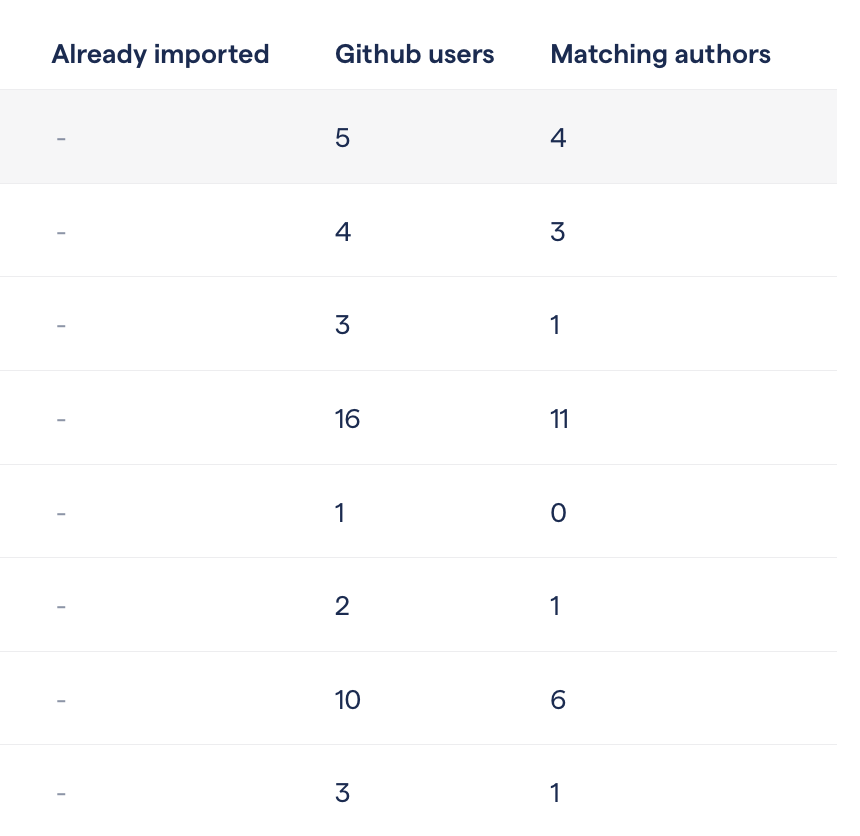
Fig. 203 Often, the number of matching authors is less than the number of team members
When listing Git provider teams, CodeScene displays how many members each team has, and how many of those match authors found in the Git log of the analyzed projects.
CodeScene attempts to match the developer name as well as any alias names that are associated with the developer. See Authors and their Aliases: Mapping Version-Control Names to People for more about author names and aliases.
User accounts that do not match a known author name are displayed with a “Link to author” button.

Fig. 204 The “Link to author” button appears when no author match is found
If you click on the button, CodeScene will perform a search to find the author name of the commits that, according to the Git provider, are associated with that user account. When the user in question is indeed a contributor to one of the repositories analyzed with the current Teams/Developers configuration, this technique will usually result in a match that can be used to connect the Git provider account to an author identified by CodeScene.
If no matching author is found, there are two likely scenarios:
The user has not committed code the analyzed repositories;
On the user’s Git provider account, the name has been left blank.
If a matching author is found, and the user is then added to a team, CodeScene will rename that author, through the author-aliases logic, to match the name of the Git provider user account. This way, on subsequent attempts to match authors, the user will automatically match. (See Renaming authors for more details about how authors can be renamed.)